Docker Tutorial

What is Docker?
A tool for isolating an application into a prepared environment (image).
Helps avoid the common issue of “it works on my local machine, but not on the server,” which usually stems from differences in tech stack versions.
Uses of Docker
Setting up consistent environments
Avoiding dependency conflicts (e.g., if one server runs two programs—Program A uses DB version 1, while Program B uses the same DB but version 2)
Deployment
(Manual) Scaling
Basic Components in Docker
Image = the recipe or template for creating containers; defines the environment setup
Container = the running instance created from an image
Volume = used to store data
Network = used for communication between containers
How Docker Works
Diagram from the official documentation (https://docs.docker.com/get-started/docker-overview/)
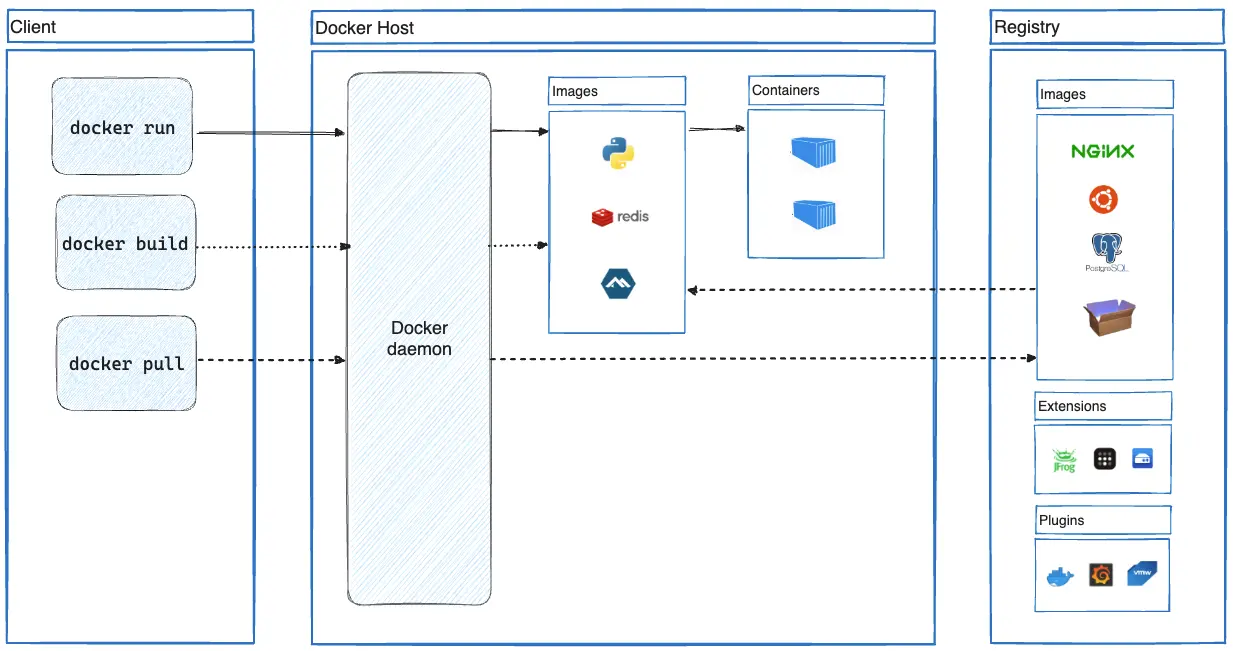
Docker daemon = the brain of Docker, responsible for processing all Docker actions
Installing Docker
https://docs.docker.com/engine/install/ubuntu/ (It's better to learn via CLI; if you need a UI, you can set up Portainer or use Docker Desktop)
Linux = can install Docker directly
Windows & macOS require virtualization, WSL, Virtual Machine, etc.
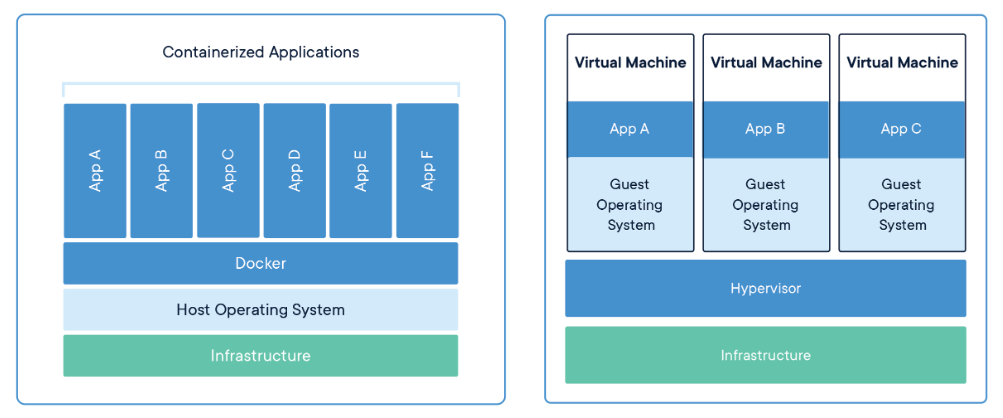
Differences Between Container and VM
Container | VM |
|---|---|
Uses the host OS directly | Uses a separate OS for each VM |
Requires fewer resources | Requires more resources |
Fast boot time | Slow boot time |
Common Docker Commands
docker pull = downloads an image from a registry
# docker pull <image_name>
docker pull nginx
docker run = runs an image as a container
# docker run <image_name>
docker run nginx

# Common flag options:

# -d = detach, run in the background
docker run -d nginx

# --name = assign a name to the created container
docker run --name my-nginx nginx

# -p = port mapping
# example: map container’s port 80 to host’s port 8080
docker run -p 8080:80 nginx

# --rm = remove the container when it stops
docker run --rm nginx

# -e = set environment variables accessible to the app
docker run -e MYVAR=root nginx

# --network = specify which network the container will join
docker run --network nginx-network nginx

# --restart = container restart policy
# no -> default, container won’t restart when stopped
# always -> always restart the container when it stops
# on-failure -> restart only if the container exits with an error
docker run --restart always nginx

# --memory = set memory usage limit
# --cpus = set CPU usage limit
docker run --memory 512m --cpus 1.5 nginx
docker build = create an image from a Dockerfile
# -t <image_name>:<version> = assign a name and version to the image being built
# . (dot) at the end tells Docker where the Dockerfile is located
docker build -t my-app:1.0 .

# -f = specify a different Dockerfile
# by default, docker build looks for a file named "Dockerfile"
docker build -f custom.Dockerfile -t my-app .

# --build-arg = like -e on docker run, defines variables used in the Dockerfile
docker build --build-arg APP_ENV=production -t my-app .

# --no-cache = build without using cache
# by default, build uses cache to speed up subsequent builds
docker build --no-cache -t my-app .
docker ps = view running containers
# -a = also show stopped containers
docker ps -a
docker <container,image,network,volume> ls = list existing <container,image,network,volume>
# list existing containers
docker container ls

# list existing images
docker image ls

# list existing networks
docker network ls

# list existing volumes
docker volume ls
docker system df = view Docker storage usage, usually shows reclaimable space (can be deleted to save storage)
docker system df

# example output:
TYPE            TOTAL     ACTIVE    SIZE      RECLAIMABLE
Images          29        6         10.28GB   7.843GB (76%)
Containers      6         4         150.3MB   148.9MB (99%)
Local Volumes   44        0         5.187kB   5.187kB (100%)
Build Cache     0         0         0B        0B
docker <container,image,network,volume,builder,system> prune = remove dangling (temporary, unused) <container,image,network,volume,builder,system>
note: system = all of them (container, image, network, volume, builder)
# remove stopped containers
docker container prune

# remove dangling images (temporary, cache)
docker image prune

# remove images not used by any container
docker image prune -a

# remove unused networks
docker network prune

# remove unused volumes
docker volume prune

# remove unused builder cache
docker builder prune

# remove all dangling containers, images, networks, builders (except volumes)
docker system prune

# remove all dangling containers, images, networks, builders, and volumes
docker system prune --volumes

# remove all unused containers, images, networks, builders, and volumes
docker system prune -a
docker logs <container> = view container logs
# view logs from start to end
docker logs nginx

# -f = follow logs live in real time
docker logs nginx -f

# --tail = show last n lines of logs
docker logs --tail 10 nginx  # last 10 log lines
docker exec <container> = run commands inside a container
# docker exec <container> <command>
docker exec nginx pwd  # execute pwd inside nginx container

# -it = interactive + tty, usually combined when accessing shell
docker exec -it nginx bash
docker exec -it nginx sh

# -u <user> = execute command as specified user
docker exec -u root nginx pwd  # run pwd as root user
docker stats = see resource usage for each container
docker stats

# example output:
CONTAINER ID   NAME      CPU %     MEM USAGE / LIMIT     MEM %     NET I/O          BLOCK I/O         PIDS
35e6fdbdcd11   app       0.00%     309.4MiB / 15.45GiB   1.96%     634kB / 205kB    86.2MB / 1.68MB   42
4776744e7f8b   db-app    0.00%     9.953MiB / 15.45GiB   0.06%     332kB / 1.82kB   172kB / 1.16MB    13
Dockerfile
What is a Dockerfile?
A file used to create images; besides pulling published images, you can also create your own.
Dockerfile Optimization
Use small-sized base images, utilize multistage builds.
Combine RUN commands instead of splitting them, to avoid creating multiple layers.
Create your project with the following structure:
project/
├── Dockerfile
├── nginx.conf
└── html/
    └── index.html
Example Dockerfile:
# Use the Nginx image as the base image
FROM nginx:latest

# Copy the Nginx configuration file into the container
COPY nginx.conf /etc/nginx/nginx.conf

# Copy the website files into the Nginx root directory
COPY html/ /usr/share/nginx/html/

# Expose port 80 for HTTP access
EXPOSE 80

# Command to run Nginx
CMD ["nginx", "-g", "daemon off;"]
Example nginx.conf:
events { }

http {
    server {
        listen 80;
        server_name localhost;

        location / {
            root /usr/share/nginx/html;
            index index.html;
        }

        error_page 404 /404.html;
    }
}
Example index.html
<!DOCTYPE html>
<html lang="en">
  <head>
    <meta charset="UTF-8" />
    <meta name="viewport" content="width=device-width, initial-scale=1.0" />
    <title>Learning Dockerfile</title>
  </head>
  <body>
    <h1>Learning Dockerfile</h1>
  </body>
</html>
Run with:
docker build -t coba-nginx-custom:1.0 .
docker run -d -p 80:80 --name my-application coba-nginx-custom:1.0
Docker Compose
A configuration file used to run multi-container setups.
How to run using the previous Dockerfile:
Create docker-compose.yml:
version: '3.9'
services:
  app:
    build: .
    image: coba-nginx-custom:1.0
    container_name: aplikasi-saya
    ports:
      - '80:80'
Jalankan dengan
# build the image, same as `docker build -t coba-nginx-custom:1.0 .`
docker compose build

# run the container, similar to:
# docker run -d -p 80:80 --name aplikasi-saya coba-nginx-custom:1.0
docker compose up -d
Other examples:
https://github.com/carenswijaya01/docker-setup-collection
Best Practices in Using Docker
Avoid using the
latesttag; specify exact versions to ease tracking.Use small base images and leverage multistage builds in Dockerfile creation.
Use
.dockerignorefiles to exclude unnecessary files from the build context.Minimize running containers as root user for security reasons.
Regularly perform system pruning (
docker system prune) to clean up unused resources.